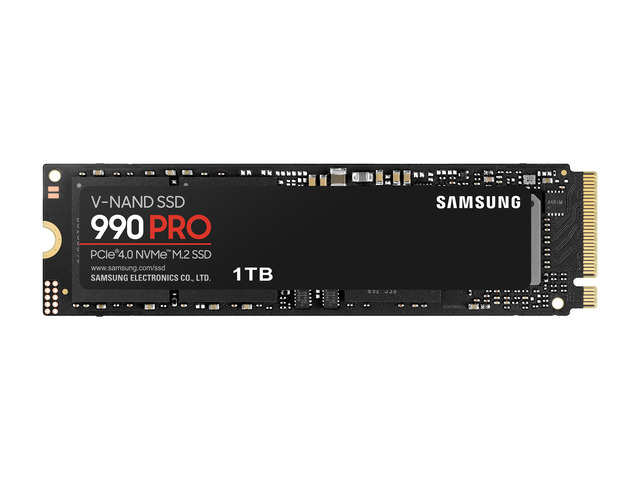
PCIe 4.0Up to 7,450 MB/s
Samsung 990 PRO 1TB
$257.00was $319.99Best price at Amazon
Compare with the 1TB 9100 PRO to judge the generation premium at the same capacity.

Compare PCIe 4.0 and 5.0 SSDs for gaming, large transfers, laptops, and PS5. Learn when Gen 5 is worth paying for and how to check compatibility, cooling, and capacity.
Published October 5, 2026 · Buying advice based on manufacturer documentation, not hands-on benchmarks.
For a general-purpose PC or gaming build, our starting recommendation is a good PCIe 4.0 SSD with enough capacity. Consider PCIe 5.0 when your computer supports it, the price difference is reasonable, and your work involves storage-heavy tasks such as frequent large transfers. If your current Gen 4 drive already feels fast, a generation upgrade alone is a weak reason to replace it.
A faster interface increases the drive’s performance ceiling. It does not guarantee that opening a browser, loading a game, or exporting a video will take half as long.
| What matters | PCIe 4.0 SSD | PCIe 5.0 SSD |
|---|---|---|
| Interface bandwidth | Lower ceiling at the same lane count | Twice Gen 4’s interface bandwidth at the same lane count |
| Everyday use | Our default value choice when cheaper | Choose for the full product, not its generation alone |
| Large file transfers | Can be limited by the other drive or connection | More potential when the entire transfer path is fast |
| Compatibility | Works in a suitable Gen 5 NVMe slot at Gen 4 speed | A suitable Gen 4 slot limits it to Gen 4 speed |
| Cooling | Follow the specific model’s requirements | Check heatsink requirements and physical clearance carefully |
| Buying priority | Capacity, sustained performance, warranty, price | The same priorities, plus a compatible Gen 5 slot |
PCIe describes the connection; NVMe is the storage protocol; M.2 describes the module format. These labels are not interchangeable. An M.2 connector alone does not tell you the supported interface or speed. See Kingston’s SSD interface FAQ.
Samsung advertises sequential reads up to 7,450 MB/s for the PCIe 4.0 990 PRO and up to 14,800 MB/s for the PCIe 5.0 9100 PRO. Those are manufacturer specifications under particular test conditions, not a promise for every file transfer or capacity. Sources: 990 PRO announcement and 9100 PRO specifications.
Sequential reads describe moving data in order. Opening applications also involves small reads, software initialization, and CPU work. Game loading can involve decompression and other processing. A headline read-speed comparison cannot establish the improvement in your particular application.
For a game-focused upgrade, look for load-time measurements for the exact drives and games you use. Do not translate a drive’s sequential-speed advantage into an equivalent frame-rate increase. Our recommendation is to keep a capable Gen 4 drive unless you have a specific limitation to solve.
Gen 5 is a stronger candidate when you repeatedly move large local datasets, use storage-intensive scratch files, or can demonstrate that your current SSD is the bottleneck. A video editor waiting on a disk-bound operation has a different requirement from someone whose export is limited by CPU encoding.
Check the whole path. Copying from a slower external drive, downloading over the internet, or reading from a network share may leave the faster SSD waiting. Copying within the same SSD also mixes reads and writes, so it is not equivalent to its advertised read benchmark.
For repeated long writes, seek sustained-write results after the fast write cache is exhausted. Controller design, flash type, drive capacity, available space, firmware, and cooling can all matter. The generation badge alone does not establish which drive will finish that job first.
PCIe generation compatibility generally lets a faster drive negotiate a slower connection, but it does not overcome a SATA-only socket or a physical fit problem. Crucial explicitly lists its Gen 5 T700 as compatible with Gen 3 and Gen 4 motherboards; verify support for your chosen model. Crucial T700 documentation.
Heat is model-dependent. Avoid assuming every Gen 5 drive needs a fan, or that every Gen 4 drive can run without a heatsink. For laptops, power consumption and idle behavior deserve attention alongside peak throughput.
Sony specifies a PCIe Gen4 x4 M.2 NVMe SSD and recommends sequential reads of at least 5,500 MB/s. Its requirements also cover dimensions and heat dissipation. A Gen 5 label does not give the console a Gen 5 interface or establish compatibility by itself. Our advice is to buy a drive that explicitly meets Sony’s requirements rather than pay extra solely for Gen 5 speed. Check Sony’s current PS5 SSD requirements.
Compare equal capacities and include any required heatsink in the total. If choosing a smaller Gen 5 drive would leave you short of space, prioritize capacity. For example, if your games and work files already occupy 1.4TB, a 1TB drive is unsuitable regardless of its speed.
Divide the total price by the advertised capacity in TB to compare cost per TB. Then check the exact capacity’s warranty, endurance rating, and sustained performance. A TBW rating is an endurance specification, not a prediction of the day the drive will fail. Keep a separate backup whichever generation you choose.
There is no universal acceptable Gen 5 premium. If two suitable drives cost nearly the same, Gen 5 may make sense. If the premium forces you to compromise capacity or another component you need, reconsider it.
These live examples link directly to our catalog where you can review current prices, configurations, and multi-retailer options. Prices and availability are verified daily; confirm the offer at the retailer before buying.
Compare with the 1TB 9100 PRO to judge the generation premium at the same capacity.
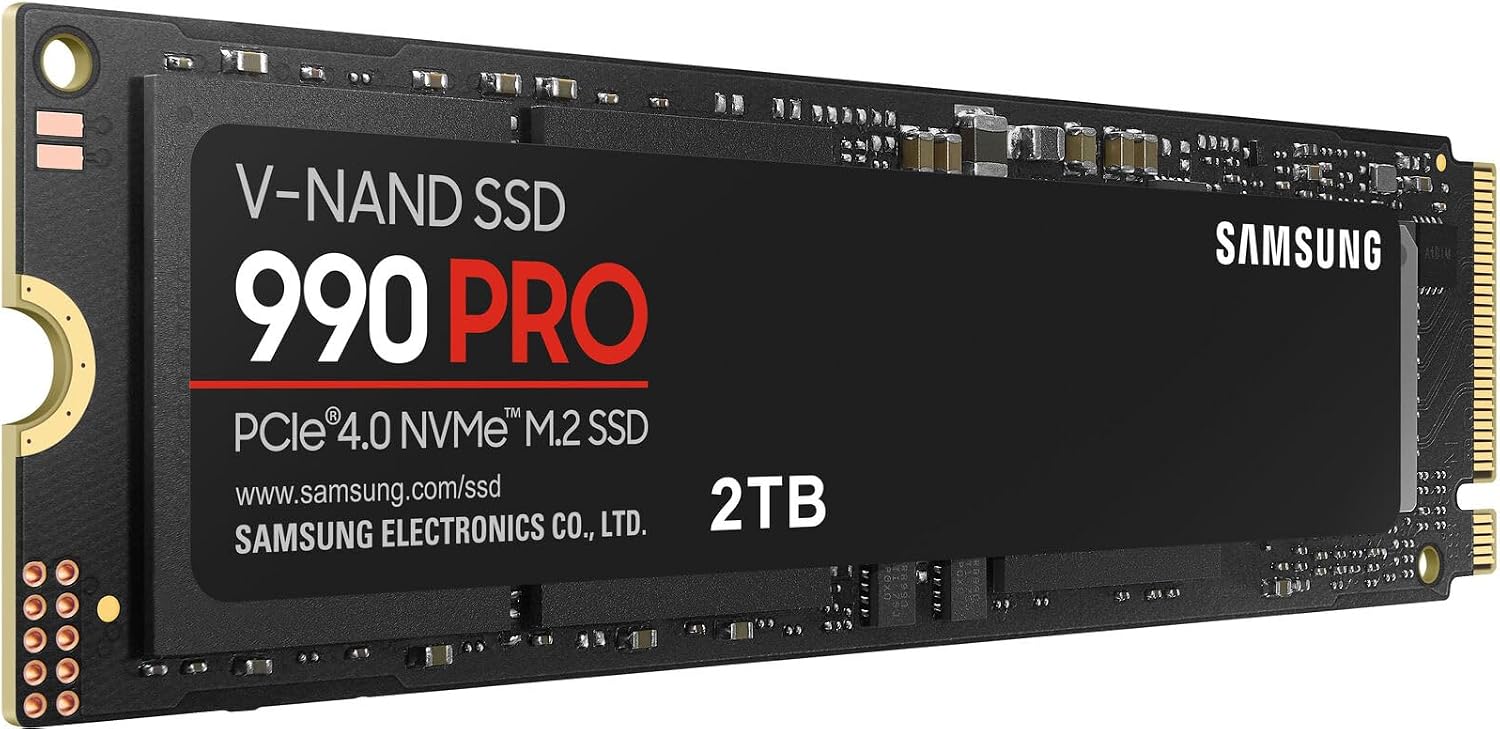
A larger-capacity Gen 4 option; this listing is the non-heatsink version.
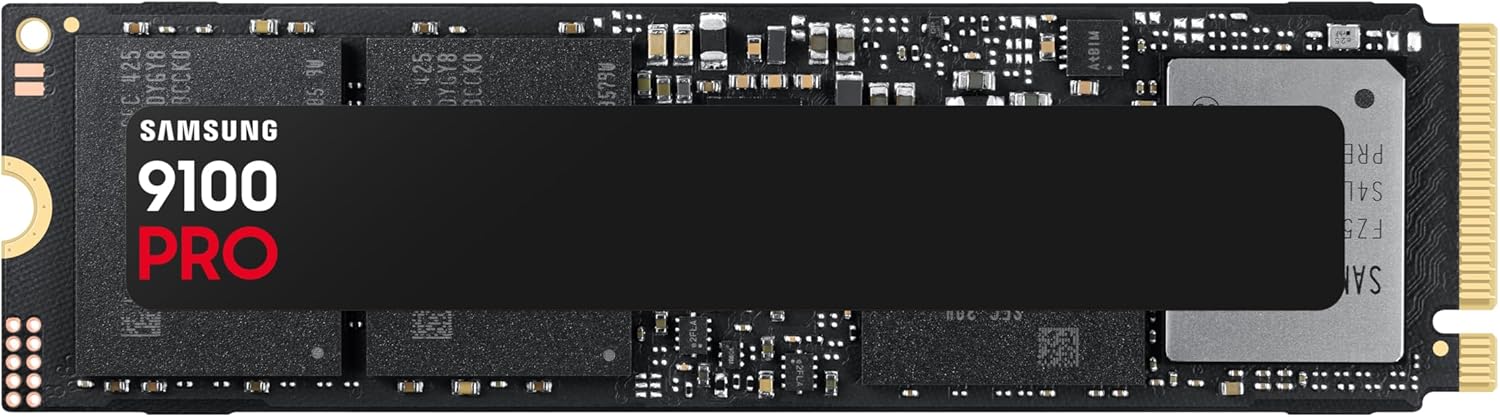
A Gen 5 comparison for a compatible PC. Check your M.2 slot and cooling requirements.
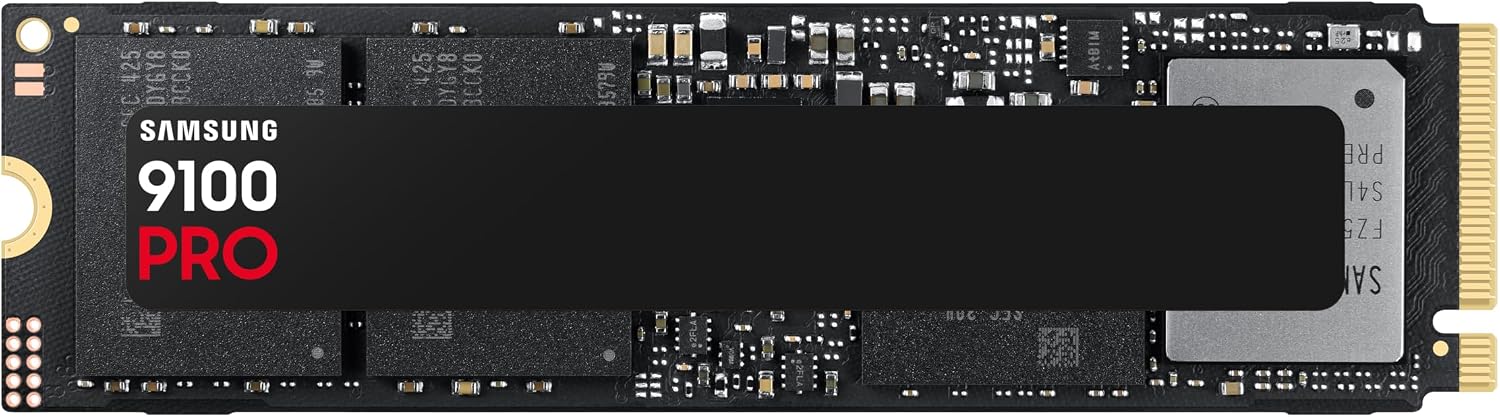
Compare against the 2TB 990 PRO for capacity-matched pricing.
Choose Gen 4 for value when it meets your needs. Choose Gen 5 for a compatible system and a workload or price that justifies it. Compare specific drives, not only their generation.
Our price intelligence scanner cross-checks Amazon, Best Buy, and Newegg every morning to eliminate fake MSRPs, catch price drops, and highlight true bargains.
Browse Current Storage Deals in Catalog→