← Browse tech dealsTECH DEAL COMPASS
How to Tell if a Laptop Deal Includes Windows Home or Pro (And Does It Matter?)
Laptop listings are notorious for hiding the Windows edition in fine print or masking it behind vague 'Windows 11' labels. Before you buy, discover how to decode retailer spec sheets, uncover 'Home in S Mode' traps, understand the 5 mission-critical differences between Home and Pro (BitLocker, Remote Desktop, Hyper-V & Sandbox, Local Offline Accounts, and Group Policy), and decide whether paying for Pro is actually worth it.
Tech Deal Compass editorial · Operating System & Hardware Guide (Updated September 20, 2026) · 8 min read
The 60-Second Verdict: Do You Actually Need Windows 11 Pro?
For 90% of laptop shoppers, Windows 11 Home is completely adequate. If your routine involves web browsing, Microsoft Office, streaming, PC gaming, Zoom calls, and photo editing, Windows 11 Home delivers identical CPU and gaming performance. You will not notice a single difference in daily speed.
When Windows 11 Pro is strictly necessary: You must have Pro if you connect to a corporate corporate network (Active Directory / Azure AD / Microsoft Entra ID), need mobile device management (Intune / MDM compliance), require full BitLocker encryption for external drives, use native Remote Desktop hosting, test untrusted software inside Windows Sandbox, or manage fleet policies via Group Policy (`gpedit.msc`).
The Retailer Obfuscation Game: Why Spec Sheets Say "Windows 11" and Nothing Else
If you browse Amazon, Best Buy, or Newegg, you will quickly notice that many product titles simply read "15.6-inch Laptop, Windows 11, 16GB RAM" without specifying whether it includes Windows 11 Home, Windows 11 Pro, or the dreaded Windows 11 Home in S Mode.
Retailers and manufacturers do this intentionally:
- Title brevity: Retail search engines penalize overloaded titles, so vendors compress "Windows 11 Home Edition 64-bit" into just "Win 11".
- Consumer assumption: PC manufacturers pay Microsoft significantly less for a Windows 11 Home license than a Pro license. Almost all consumer-grade laptops ship with Home by default.
- Third-party seller trickery: Shady marketplace sellers on Amazon and Walmart often take a base consumer laptop, apply an unauthorized volume license key or refurbished license, slap "Win 11 Pro" in the title, and mark up the price by $150.
The Manufacturer Sub-Brand Rule of Thumb
Even if the retailer listing omits the edition, the laptop's product family reveals its factory operating system 95% of the time:
| Brand | Consumer Lines (Factory Windows 11 Home) | Commercial / Enterprise Lines (Factory Windows 11 Pro) |
|---|
| Lenovo | IdeaPad, Yoga, Legion, LOQ, Slim | ThinkPad (T, X, P, L, E series), ThinkBook |
| Dell | Inspiron, XPS, Alienware, G-Series | Latitude, Precision Mobile Workstations, Vostro |
| HP | Pavilion, OmniBook, Envy, Spectre, Omen, Victus | ProBook, EliteBook, ZBook Studio/Fury |
| ASUS | Vivobook, Zenbook, TUF Gaming, ROG Strix/Zephyrus | ExpertBook, ProArt Studiobook |
| Acer | Aspire, Swift, Nitro, Predator Helios | TravelMate, Enduro Urban |
How to Verify the Edition Before You Buy
Never assume. Here is exactly where to check on the major retailer websites before adding a laptop to your cart:
Best Buy
Scroll below the gallery to Specifications. Under General or Operating System, look for "Operating System: Windows 11 Home" or "Windows 11 Pro". Watch out for "Windows 11 Home in S Mode" on laptops priced under $400.
Amazon
Scroll down to the Technical Details table. Find the row labeled Operating System. If buying from a third-party seller claiming "Windows 11 Pro upgraded", verify if the seller opened the factory seal to perform custom imaging.
Newegg
Click the Specs tab underneath the product overview. Check the Operating System row. Business ThinkPads, Latitudes, and EliteBooks on Newegg frequently offer factory Windows 11 Pro direct from manufacturer distribution.
💡 How to check on your current PC right now: Press Win + R, type winver, and press Enter. A modal will pop up displaying whether you are running Windows 11 Home or Windows 11 Pro.
The "Windows 11 Home in S Mode" Trap (And the Free 60-Second Fix)
If you are shopping for a budget laptop between $150 and $400, you will often encounter "Windows 11 Home in S mode".
⚠️ What S Mode Actually Does:
S Mode locks the laptop so you can only install apps from the Microsoft Store. It blocks standard executable (.exe) downloads, prevents you from installing Google Chrome, Firefox, Steam, VLC, Zoom, or Adobe Creative Cloud, and forces Microsoft Edge and Bing as your default search engine.
Many buyers panic when they try to download Chrome and see a message saying "For security and performance, this mode of Windows only runs verified apps from the Store." Shady marketplace sellers even try to charge a $30 to $50 "service fee" to unlock it.
✅ How to Switch Out of S Mode for Free (Permanent & Instant):
- Open Settings → Click System → Click Activation.
- Find the section titled Switch to Windows 11 Home (do not click "Upgrade your edition of Windows").
- Click the Go to the Store link.
- In the Microsoft Store page that opens, click the blue Get button under "Switch out of S mode".
- Within 30 seconds, your laptop converts to regular Windows 11 Home. You can now install Chrome, Steam, and any third-party software freely. Never pay anyone for this!
The 5 Real Differences That Actually Matter
If both Home and Pro run the same apps and games at the exact same speed, why does Pro exist? Here are the 5 architectural features reserved exclusively for Windows 11 Pro:
1. BitLocker Drive Encryption vs. "Device Encryption"
Both editions protect your internal primary drive, but there is a major catch. Windows 11 Home includes "Device Encryption", which requires a Microsoft Account login, only encrypts the internal boot C: drive, and cannot protect secondary storage.
The Pro Advantage: Windows 11 Pro includes full BitLocker Drive Encryption plus BitLocker To Go. You can password-encrypt secondary internal SSDs, external USB hard drives, and flash drives. Furthermore, Pro allows local offline key storage, PIN protection at startup, and enterprise key escrow without forcing your personal Microsoft cloud account.
2. Remote Desktop Protocol (RDP) Host
Windows 11 Home can act as an RDP Client (meaning it can connect out to other remote machines). However, Windows 11 Home cannot act as an RDP Host.
The Pro Advantage: Windows 11 Pro allows your laptop to function as an RDP host. You can leave your laptop docked at your home office or desk and seamlessly access its full desktop with zero perceptible lag from your iPad, MacBook, phone, or another laptop across your home Wi-Fi or VPN. Third-party tools like TeamViewer or Chrome Remote Desktop work on Home, but they suffer from compression lag, lower frame rates, and commercial use restrictions.
3. Windows Sandbox & Hyper-V Virtualization
Ever received an email attachment or downloaded a questionable utility from the web and wondered if it contained spyware or malware? In Windows 11 Home, running that file risks infecting your real operating system.
The Pro Advantage: Windows 11 Pro includes Windows Sandbox, an isolated, disposable desktop environment that launches in under 10 seconds. You can copy-paste suspicious files into the Sandbox and run them with complete safety. The instant you close Sandbox, every file, registry edit, and virus is completely vaporized. Pro also includes Microsoft's Type-1 Hyper-V hypervisor for running virtual machines and high-performance Docker containers.
4. Native Offline Local Account Setup (Privacy Control)
When unboxing a brand-new Windows 11 Home laptop, Microsoft actively forces you to connect to Wi-Fi and log in with an online Microsoft Account. Microsoft continually patches command-line bypasses (like oobe\bypassnro) to force cloud account adoption.
The Pro Advantage: During the initial setup screen, Windows 11 Pro gives you an official option: "Set up for work or school" → "Domain join instead". This immediately permits you to create a 100% offline, local administrator account without an email address, password sync, OneDrive cloud upload, or telemetry connection to Microsoft.
5. Group Policy Editor (`gpedit.msc`) & Windows Update Control
Have you ever been in the middle of writing a paper or compiling code only for Windows Update to abruptly restart your laptop? In Windows 11 Home, update pause options are strictly limited, and system policies are locked away.
The Pro Advantage: Windows 11 Pro includes the powerful Local Group Policy Editor (`gpedit.msc`). With Group Policy, you can permanently disable Bing web search results inside the Start Menu, block unwanted diagnostic telemetry, prevent automated forced reboots, defer major feature updates for up to 365 days until they are stable, and pause security updates for up to 5 weeks.
Hardware Boundaries: Memory & Processor Sockets
For heavy workstations and extreme compute configurations, Windows editions also enforce distinct hardware ceiling limits:
Windows 11 Home Limits
Max 128 GB RAM · 1 CPU Socket
Plenty for any modern laptop or standard gaming desktop. Even high-end 64GB laptops operate comfortably under the 128GB ceiling.
Windows 11 Pro Limits
Max 2,048 GB (2 TB) RAM · 2 CPU Sockets
Designed for dual-socket Xeon/EPYC rendering workstations, massive local database servers, and multi-tenant virtualization nodes.
Side-by-Side Comparison Matrix
| Core Feature | Windows 11 Home | Windows 11 Pro | Windows 11 in S Mode |
|---|
| CPU & Gaming Performance | 100% Identical | 100% Identical | Restricted to Store Apps |
| BitLocker Drive Encryption | Boot drive only (Device Encryption) | Full Drive + USB BitLocker To Go | Boot drive only |
| Remote Desktop (RDP) | Client only (cannot receive) | Full Host + Client | Client only |
| Windows Sandbox | ❌ No | ✅ Yes (Instant throwaway VM) | ❌ No |
| Hyper-V Virtualization | ❌ No | ✅ Yes (Type-1 Bare Metal) | ❌ No |
| Domain Join & Azure AD / Entra | ❌ No | ✅ Yes (Required for Corporate BYOD) | ❌ No |
| Group Policy Editor (`gpedit.msc`) | ❌ No | ✅ Yes | ❌ No |
| Offline Local Account Setup | Blocked (Forces Microsoft Account) | Supported natively | Blocked |
| Max RAM Capacity | 128 GB | 2,048 GB (2 TB) | 128 GB |
The Upgrade Math: Is Windows 11 Pro Worth $99?
If you bought a laptop with Windows 11 Home and later decide you need Pro, Microsoft charges $99.99 through the Microsoft Store app.
⚠️ Beware the $15 "Grey Market" Key Trap:
You will see websites selling Windows 11 Pro keys for $10 to $20. These are almost always stolen Multiple Activation Keys (MAK) or enterprise KMS volume licenses destined for university labs or corporations. When Microsoft audits that organization or detects suspicious activations, the entire key block is blacklisted. Your laptop will suddenly fail activation 6 months later, leaving you with a watermark and locked settings.
The Smart Buyer Strategy: If your company or school requires Windows 11 Pro, do not buy a consumer laptop intending to pay $100 for the upgrade later. Instead, browse deals on verified business lines (ThinkPad, Latitude, ProBook). Because commercial machines regularly go on steep 35% to 45% clearances at Newegg and Amazon, you can often pick up a business laptop with Windows 11 Pro pre-installed for less than a consumer laptop with Home!
Live Laptop Deals Spotlight: Verified Pro vs. Home Configurations
Here are handpicked, verified live laptop deals currently tracked in our catalog, contrasting genuine business-class Windows 11 Pro workstations with high-value Windows 11 Home consumer deals:
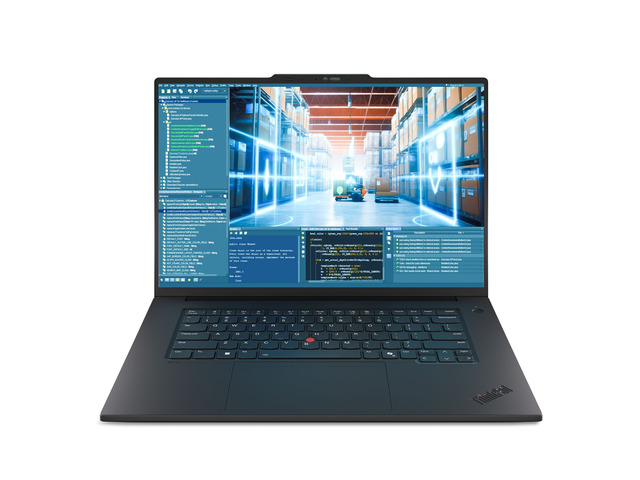 Windows 11 Pro Pre-Installed
Target Workflow: Corporate BYOD, remote office productivity, field durability
OS: Windows 11 ProCPU: Intel Core Ultra 9 285HRAM: 64 GBStorage: 2 TB SSD
Live Cross-Store Pricing Check:
Amazon
$2,934.79
Lowest Price
Why it stands out: Factory Windows 11 Pro pre-installed on legendary ThinkPad mil-spec hardware. Powered by AMD's Ryzen 5 PRO enterprise processor with 16GB RAM, physical webcam privacy shutter, and full BitLocker hardware encryption.
Trade-off to know: Traditional corporate aesthetic with matte black finish rather than slim ultraportable metal styling.
Windows 11 Pro Pre-Installed Target Workflow: Power multitasking, virtual machines, touch/tablet flexibility
OS: Windows 11 ProCPU: Intel Core Ultra 9 285HRAM: 64 GBStorage: 2 TB SSD
Live Cross-Store Pricing Check:
Amazon
$2,934.79
Lowest Price
Why it stands out: A rare 64GB DDR5 memory configuration paired with a massive 1TB SSD and Windows 11 Pro. Hyper-V and Docker containers run effortlessly with headroom for dozens of browser tabs and virtual machines.
Trade-off to know: At 14 inches with 64GB of RAM, battery life under heavy virtualization loads will be around 5–6 hours.
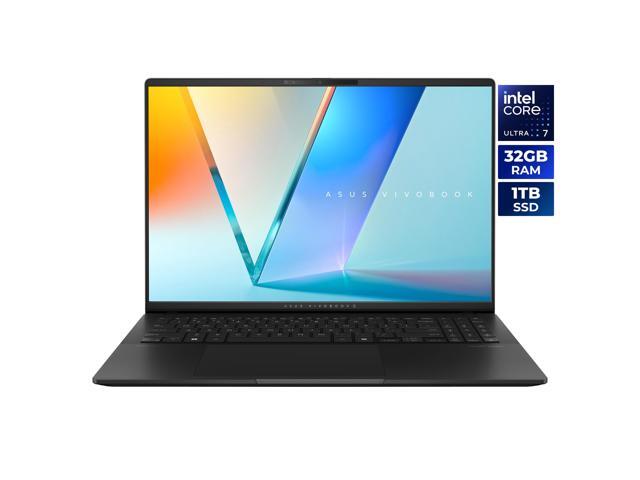 Windows 11 Home Pre-Installed
Target Workflow: Content consumption, creative college work, travel entertainment
OS: Windows 11 HomeCPU: Intel Core Ultra 7 255HRAM: 32 GBStorage: 1 TB SSD
Live Cross-Store Pricing Check:
Newegg
$1,299.99
Lowest Price
Why it stands out: Features a breathtaking OLED display with pure infinite contrast, razor-thin aluminum chassis, and cutting-edge battery efficiency. Windows 11 Home is all you need for streaming, editing, and day-to-day productivity.
Trade-off to know: Lacks Hyper-V and native RDP host; external USB drives cannot be encrypted via BitLocker To Go without third-party encryption software.
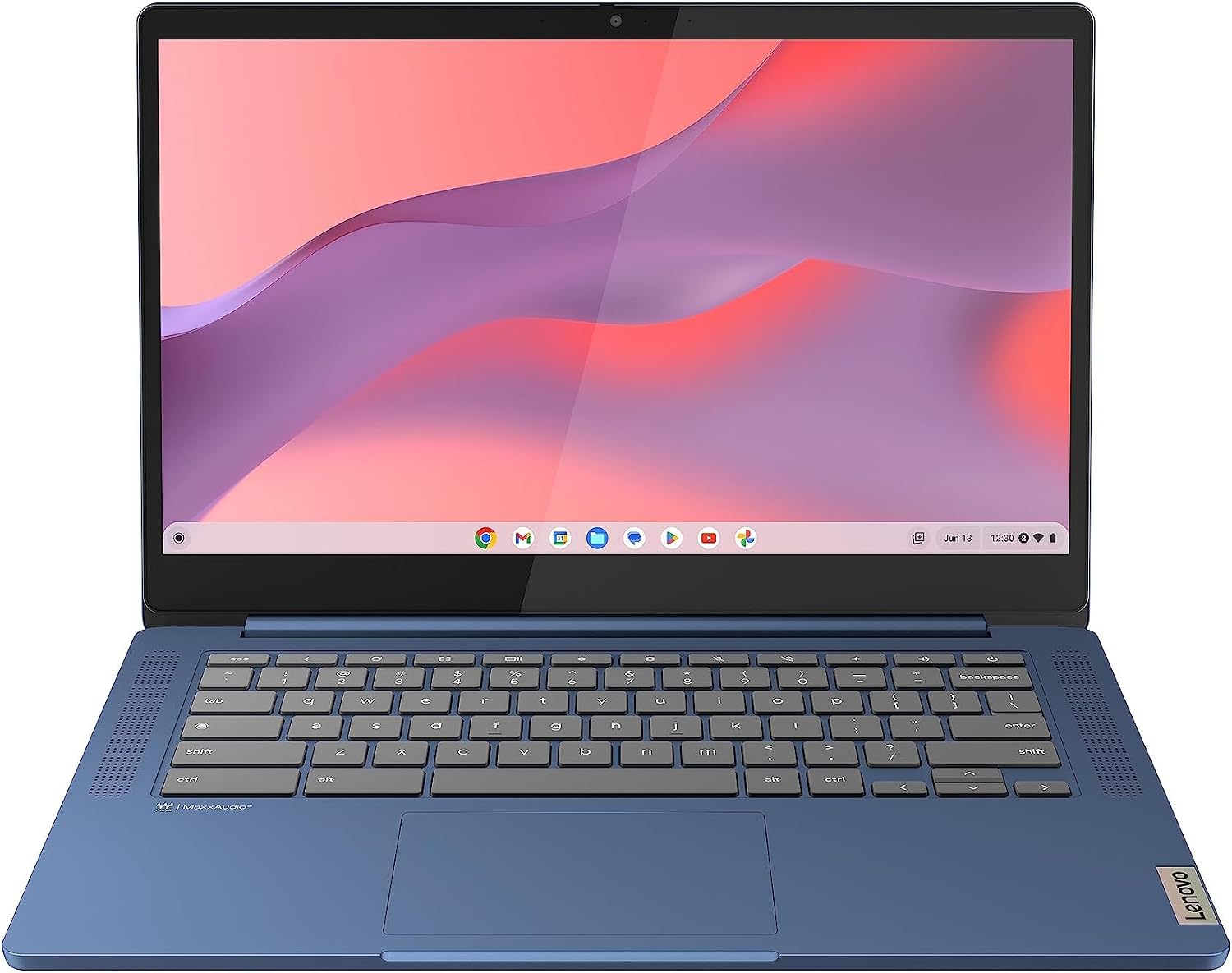 Windows 11 Home Pre-Installed
Target Workflow: Budget-conscious productivity, high school students, family browsing
OS: Windows 11 HomeCPU: See retailer specificationsRAM: 16 GBStorage: See retailer specifications
Live Cross-Store Pricing Check:
Amazon
$329.00
Lowest Price
Why it stands out: Incredible bang-for-your-buck pricing under $500–$750. Delivers a spacious 15-inch to 16-inch display, 16GB of RAM, and responsive NVMe storage. Paying $100 for Windows 11 Pro on this tier would be wasted money.
Trade-off to know: Cannot connect to corporate Azure Active Directory without upgrading to Pro; ships with consumer warranty.
The Buyer's 5-Point Windows OS Checklist Before Hitting "Buy"
- 1. Check the exact OS line in the specs table: Never rely on the listing headline alone. Scroll down to "Technical Details" or "Specifications" and confirm whether it says "Windows 11 Home" or "Windows 11 Pro".
- 2. Check for "in S Mode" on sub-$400 laptops: If you see "Windows 11 Home in S Mode", remember you can switch out in 60 seconds through the Microsoft Store for zero dollars. Never pay a seller fee for this.
- 3. Verify employer or university IT policies: If you plan to use this laptop for work, check if your IT department requires BitLocker encryption on external media, Microsoft Entra ID / Intune enrollment, or Azure AD domain join. If yes, you must have Windows 11 Pro.
- 4. Calculate total landed cost: If you need Pro, shop for business laptops (ThinkPad, Latitude, EliteBook). Paying $50 more for a business laptop on sale is much smarter than paying $99.99 for an in-place Microsoft Store digital license.
- 5. Beware refurbished "Upgraded to Pro" listings: On Amazon and Walmart marketplace, third-party sellers frequently re-image cheap laptops with unverified volume licenses. Ensure the seller is the official brand or authorized retailer to guarantee a valid OEM digital license embedded in the BIOS.