← Browse tech dealsTECH DEAL COMPASS
Best Budget Laptop for Everyday Browsing and Email
You don’t need to spend $1,000 on a laptop just to check Gmail, pay bills, stream videos, and browse the web. But buying the wrong budget machine can leave you stranded with laggy typing, blurry screens, and freezing tabs. Here is what specs actually matter under $500, Chromebook vs Windows advice, and verified live deals from our catalog.
Tech Deal Compass editorial · Practical Buying Guide (Updated September 20, 2026) · 7 min read
The Quick Take: What You Actually Need
You do not need to spend $800 to $1,200 on a laptop just to browse the web, check email, pay bills, and stream video. Modern budget processors like the Intel N100/N150 or AMD Ryzen 5 easily handle 4K 60fps media and modern web apps without breaking a sweat.
The Golden Rule: The difference between a budget laptop you will love and one that will make you tear your hair out comes down to three specs: 1080p Full HD resolution (avoid grainy 768p displays), a true NVMe solid-state drive (avoid sluggish eMMC flash), and adequate RAM (8GB to 16GB for Windows 11, or 4GB to 8GB for lightweight ChromeOS).
The Anatomy of a Fast Budget Laptop in 2026
Ten years ago, buying a $300 laptop meant suffering through loud spinning hard drives, dim 768p TN panels that distorted colors the moment you tilted your head, and sluggish dual-core Celeron CPUs. In 2026, efficient silicon and modular production have made sub-$500 laptops remarkably capable—if you know which specs to look for.
| Hardware Component | Acceptable Baseline | Recommended Sweet Spot | Danger Zone (Do Not Buy) |
|---|
| Processor (CPU) | Intel N100 / N150 (4 cores, 6W) | AMD Ryzen 5 / Intel Core i3 (6–8 cores) | Old Celeron N4020, A4/A6 APUs, 7th/8th Gen Core |
| Memory (RAM) | 8 GB DDR4 / DDR5 (or 4GB on ChromeOS) | 16 GB DDR4 / DDR5 | 4 GB Soldered on Windows 11 |
| Storage Drive | 128 GB NVMe M.2 SSD | 256 GB – 512 GB PCIe NVMe SSD | 32GB / 64GB eMMC flash memory |
| Display Panel | 14" to 15.6" 1080p FHD (1920×1080) | 1080p / 1200p IPS Anti-Glare (250–300 nits) | 1366×768 (768p) TN panels |
| Battery & Charging | 7–8 Hours battery life | 10+ Hours + USB-C Power Delivery charging | Proprietary needle barrel plug with <4 hr life |
The Big Decision: Chromebook vs Windows 11
When shopping under $400, your first fundamental decision is operating system. Both platforms have evolved significantly, but they serve distinct needs:
Choose a Chromebook If:
- Your life lives in the browser: 95% of your daily computing happens on websites, Gmail, YouTube, Google Drive, Netflix, and social feeds.
- You want instant-on speed: ChromeOS boots in 6 to 8 seconds and stays fast year after year without slow registry clutter.
- You want exceptional battery life: With minimal background OS telemetry, Chromebooks routinely deliver 10 to 12 hours on budget chips.
- You want zero maintenance: Automatic seamless background updates, built-in sandboxed security, and virtually zero virus or malware risk.
Choose a Windows 11 Laptop If:
- You need desktop software: You rely on desktop TurboTax, local Microsoft Office applications, legacy accounting tools, or specialized .exe software.
- You manage local files & external drives: You frequently plug in external USB hard drives, transfer photos from SD cards, or organize complex local folders.
- You connect diverse peripherals: You use older USB printers, barcode scanners, drawing tablets, or niche USB accessories with Windows drivers.
- You want full multitasking freedom: You want complete control over window snapping, background utility tray tools, and desktop shortcuts.
The 4 Non-Negotiable Rules for Everyday Laptops
1. Never Settle for a 1366×768 Display
Retailers love discounting laptops with 1366×768 screens by labeling them "HD." In reality, a 768p panel on a 14-inch or 15.6-inch screen produces coarse, jagged text that causes noticeable eye strain after 20 minutes of reading email threads. A 1080p (1920×1080 Full HD) screen offers over two million pixels—twice the resolution—rendering crisp text, letting you read two browser tabs side-by-side without horizontal scrolling.
2. The RAM Reality: 4GB is a Trap on Windows 11
A freshly booted Windows 11 system consumes between 2.8GB and 3.4GB of RAM just idling with Windows Defender and background system tasks. On a 4GB laptop, opening Gmail and three news tabs exhausts available physical memory, forcing Windows to write memory pages to storage (paging/swapping). The result is cursor freezes and sluggish typing.
Our recommendation: For Windows 11, aim for 8GB minimum, or grab a 16GB model when available on discount (as low as $299 to $359 in our live catalog). If you only have $200–$250, choose a Chromebook, where ChromeOS runs comfortably on 4GB.
3. Insist on True NVMe SSD Storage Over eMMC
Many sub-$250 laptops cut corners by soldering 64GB of eMMC (embedded MultiMediaCard) memory to the motherboard. eMMC is essentially slow SD-card flash, delivering sequential read/write speeds of only 150–250 MB/s. When Windows downloads an update in the background, disk activity spikes to 100% and locks the entire laptop. A true PCIe NVMe M.2 SSD achieves 1,500 to 3,500 MB/s, allowing the laptop to boot in seconds and install updates silently.
4. Look for Modern 6W Architectures (Intel N100 / N150)
Do not confuse modern Intel N100/N150 processors with old Celerons. The N100 and N150 feature 4 high-efficiency Gracemont cores clocked up to 3.4–3.6 GHz, complete with dedicated hardware AV1 and HEVC video decoders. They easily stream 4K YouTube without heating up or spinning noisy fans, while sipping just 6 Watts of electricity.
Today's Verified Budget Laptop Deals
Our deal scanner monitors cross-retailer prices across Amazon, Best Buy, and Newegg every morning. Below are the top-scoring budget laptops that meet all our hardware quality standards:
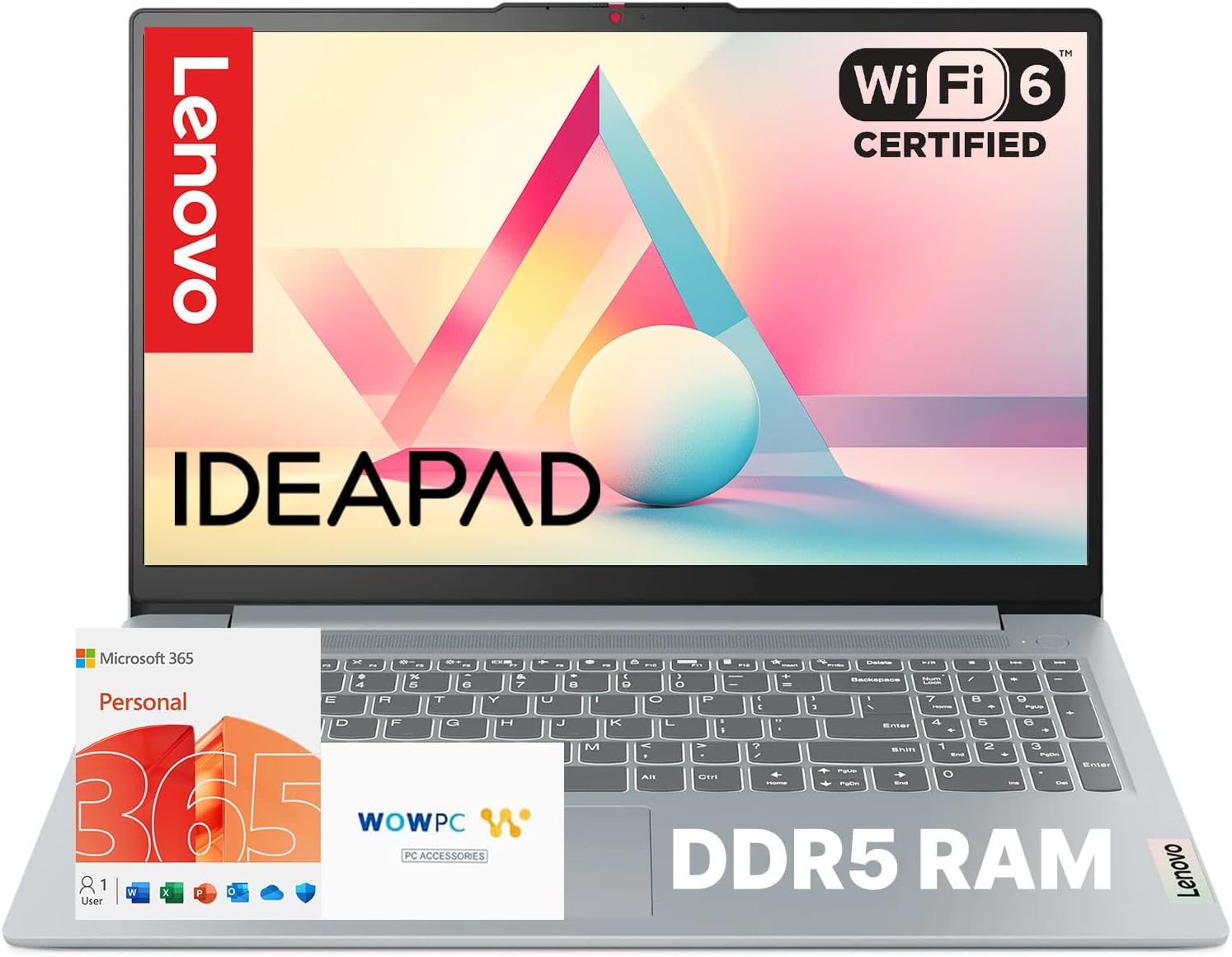 Best Ultra-Budget Pick (<$300)
Ideal For: Web browsing, checking email, online banking, video streaming
CPU: Intel N100RAM: 4 GBStorage: 128 GB SSDDisplay: 15.6 inches
Live Cross-Store Pricing Check:
Amazon
$289.00
Lowest Price
Why it fits browsing & email: Equipped with a modern high-efficiency Intel quad-core processor and a crisp 1080p Full HD display. It stays whisper-quiet, sips minimal power, and handles daily communication portals smoothly.
Trade-off to know: Modest storage capacity (128GB); best paired with cloud storage (Google Drive, OneDrive) or an external USB thumb drive for large photo collections.
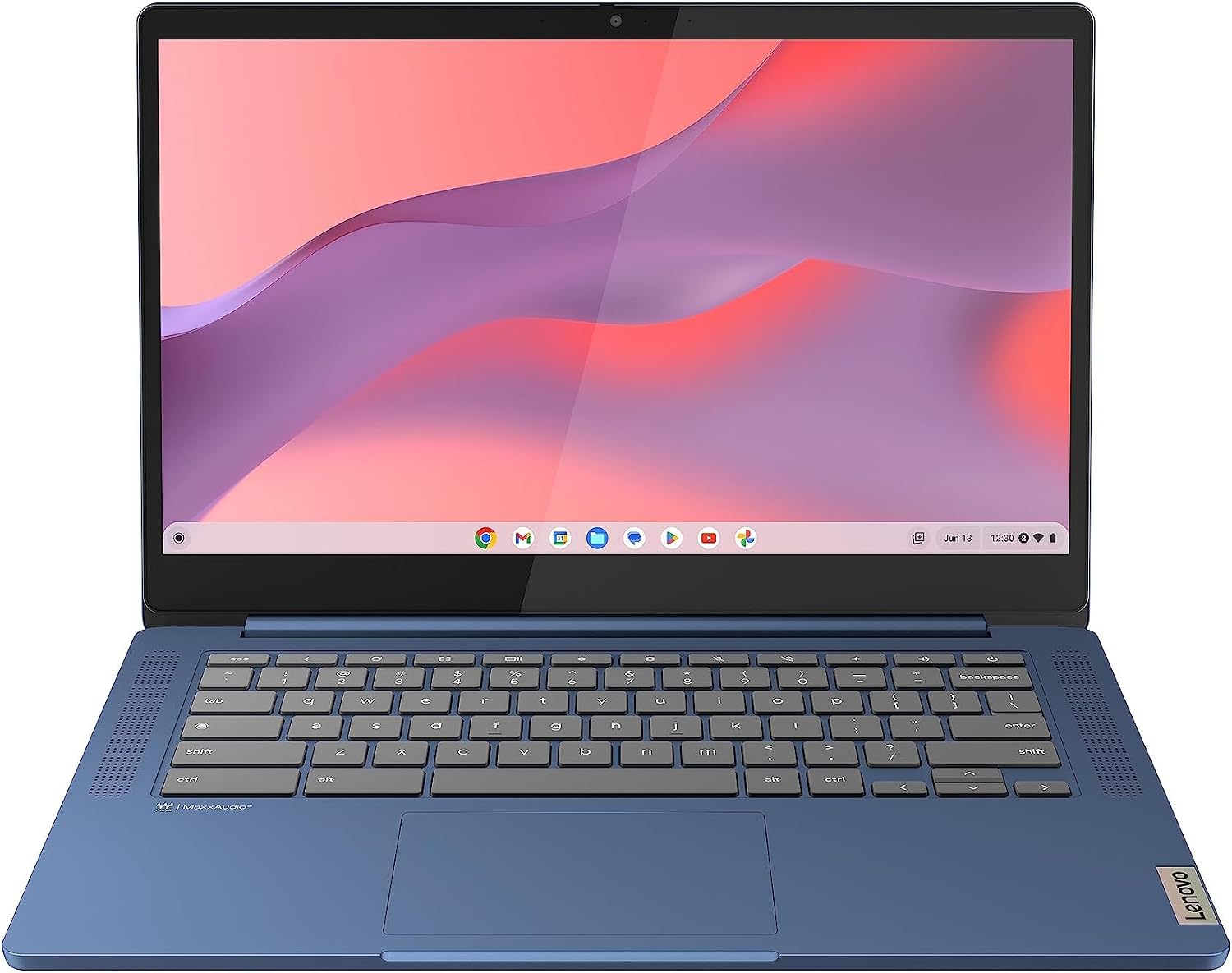 Best Lightweight / Chromebook Pick
Ideal For: Students, cloud-first users, distraction-free writing, web apps
CPU: See retailer specificationsRAM: 16 GBStorage: See retailer specificationsDisplay: 14 inches
Live Cross-Store Pricing Check:
Amazon
$329.00
Lowest Price
Why it fits browsing & email: Zero background Windows bloatware, instant wake-from-sleep, rock-solid security sandbox, and 10+ hours of all-day battery life for pure browsing freedom.
Trade-off to know: Runs ChromeOS rather than Windows; cannot install traditional legacy Windows desktop .exe applications like TurboTax desktop or PC games.
 Best Value Multitasking Sweet Spot ($320–$380)
Ideal For: Heavy tab hoarders, office spreadsheet work, multi-window productivity
CPU: Intel N100RAM: 16 GBStorage: 256 GB SSDDisplay: 15.6 inches
Live Cross-Store Pricing Check:
Amazon
$359.00
Lowest Price
Why it fits browsing & email: A phenomenal value sweet spot featuring 16GB of RAM at an ultra-budget price point. You can keep 25+ browser tabs open alongside Spotify, Word, and Zoom without any tab discarding or stutter.
Trade-off to know: Features an everyday lightweight plastic chassis and standard 250-nit indoor brightness; not suited for direct outdoor sunlight usage.
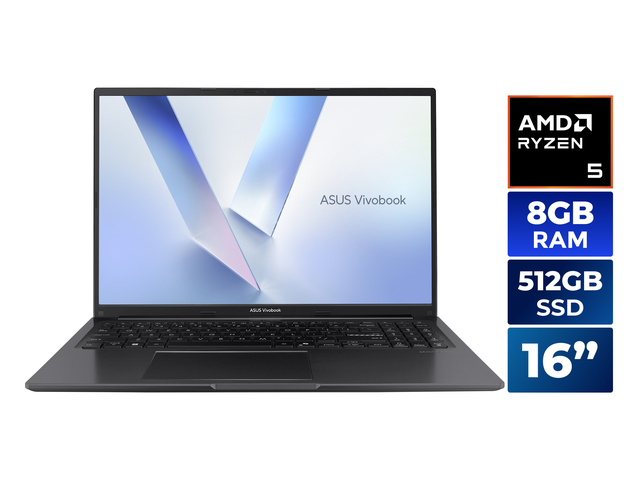 Best Step-Up All-Rounder ($400–$500)
Ideal For: 5-year longevity, light photo editing, expansive screen real estate
CPU: AMD Ryzen 5 150RAM: 8 GBStorage: 512 GB NVMe SSDDisplay: 16.0 inches
Live Cross-Store Pricing Check:
Newegg
$499.99
Lowest Price
Why it fits browsing & email: Combines a high-performance multi-core processor (AMD Ryzen 5 or Intel Core i3) with a spacious 16-inch display and a fast 512GB NVMe SSD, giving you ample headroom for years to come.
Trade-off to know: Slightly larger and heavier (around 4.1 lbs) due to the expansive 16-inch display; best suited for desktop and home use rather than constant backpack travel.
The Red-Flag Checklist: 5 Budget Laptop Traps to Avoid
- 1. The "HD" Marketing Trap: When a listing advertises "HD" without the word "Full," check the pixel specs. 1366×768 (768p) is obsolete and will produce blurry text. Always demand 1080p FHD (1920×1080).
- 2. Fake 2026/2027 "Editions" with 8-Year-Old Chips: Third-party marketplace sellers often list refurbished 2017–2018 corporate laptops (e.g. Intel Core i5-7200U or i5-8250U) as "New 2026 Edition." Always check the exact processor model number before clicking buy.
- 3. 64GB eMMC Storage Bundles: 64GB is barely enough space to accommodate Windows 11 system files, system restore points, and two major OS cumulative updates. Within six months, your drive will be 95% full and refuse to update.
- 4. Single-Band Wi-Fi 4 / 802.11n Wireless Cards: Some ultra-cheap white-label notebooks use old 2.4GHz-only Wi-Fi chips that cap download speeds at 30 Mbps and drop connections on modern mesh routers. Ensure the listing confirms Wi-Fi 5 (802.11ac) or Wi-Fi 6 (802.11ax).
- 5. Proprietary Pin-Barrel Chargers: Prefer laptops that support standard USB-C charging. If the charger breaks or you leave it at work, a universal USB-C phone/tablet charger can power your laptop.
Day-One Optimization: Make Your $300 Laptop Feel Like $800
If you purchase an entry-level Windows laptop, taking five minutes on day one to clean up factory bloatware will make the machine feel twice as fast:
- Uninstall pre-installed antivirus trials: Third-party security suites (McAfee, Norton) consume tremendous CPU cycles on budget hardware. Built-in Windows Defender provides top-tier protection without slowing your PC down.
- Disable unnecessary startup apps: Open Task Manager (Ctrl + Shift + Esc) → Startup Apps tab, and disable Spotify, Teams, Cortana, and manufacturer utilities from launching on boot.
- Turn on Browser Memory Saver: In Google Chrome or Microsoft Edge, go to Settings → Performance and enable "Memory Saver" to automatically sleep inactive background tabs.
- Install a lightweight ad blocker: Modern advertising networks execute heavy tracking scripts that bog down web pages. An efficient extension like uBlock Origin reduces page load times and RAM consumption by over 50%.